
Full step-by-step checklist (with tools)
1) Prep & Backup 
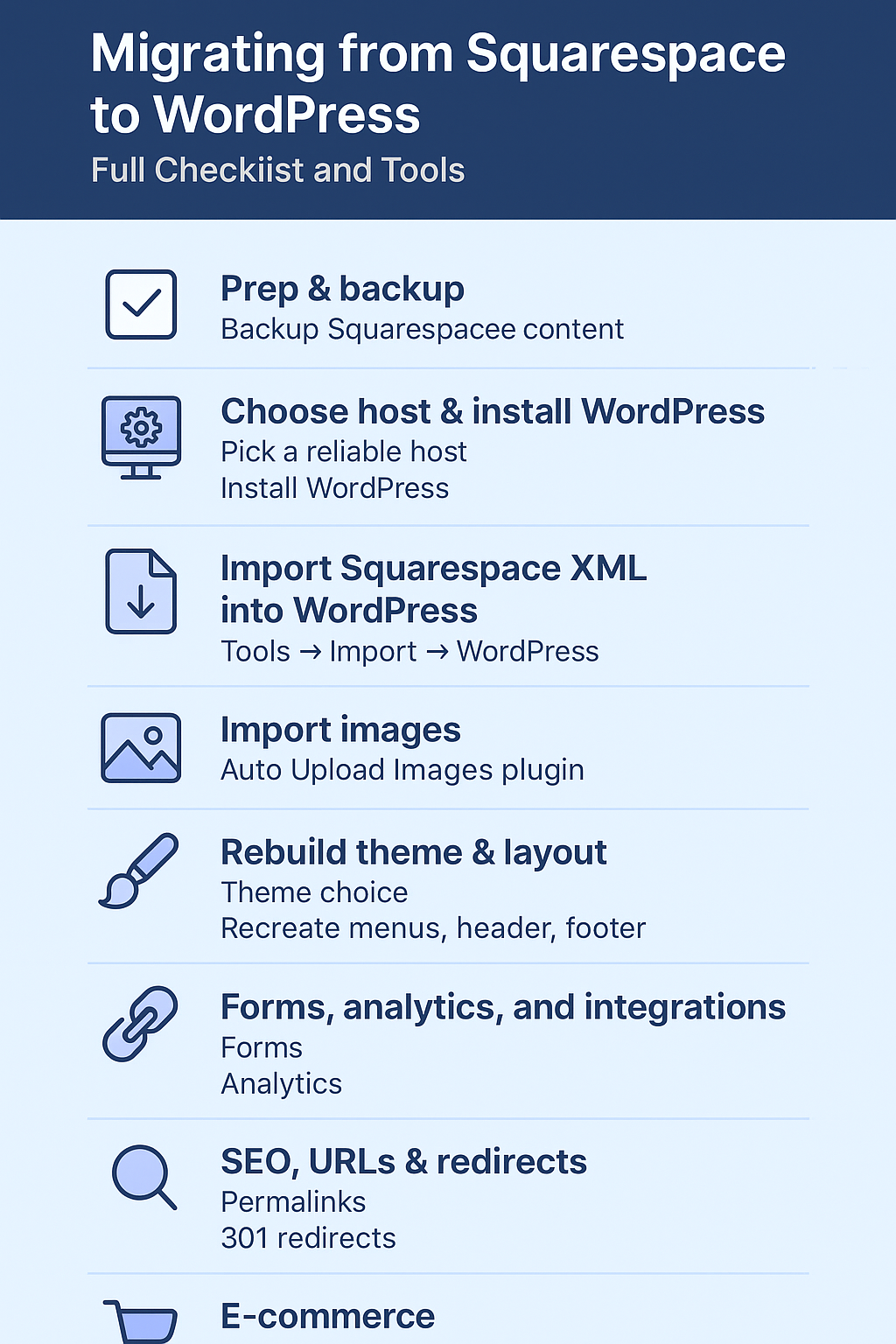
 Backup Squarespace content: Export from Squarespace (Settings → Advanced → Import/Export). Save the XML and note which pages didn’t export.
 Create a migration plan: list pages, forms, galleries, links, ecommerce products, and plugins you’ll need on WordPress.
2) Choose host & Install WordPress 
 Pick a reliable host (managed WordPress hosts like WP Engine, Kinsta, or a reputable shared host). Many hosts offer one-click WordPress installs and migration help.
 Install a fresh WordPress on a staging subdomain (e.g., staging.yoursite.com) so you can build without downtime.
3) Import Squarespace XML into WordPress 
 In WP admin: Tools → Import → WordPress → install the WordPress Importer and import the XML file. This brings posts, basic pages and some content. Some blocks may appear as raw HTML and need manual clean-up.
4) Import Images (the crucial bit) 
 Problem: Squarespace images are often left as external URLs pointing to Squarespace. You must import these to your WP Media Library so they won’t break.
 Tools:
Auto Upload Images / Smart Auto Upload Images plugin — automatically fetches external images used in post content, saves them into your media library and replaces URLs. Recommended for bulk import after the XML import.
For advanced needs, consider specialized paid tools (see Tools section below).
5) Rebuild Theme & Layout 
 Theme choice: pick a flexible, well-coded theme (block themes, Astra, GeneratePress, or your custom theme). You can replicate layout with Gutenberg blocks, a page builder (Elementor/Beaver/Divi), or hand-code templates.
 Recreate menus, headers, footers, sidebars and add widgets. The Squarespace theme cannot be exported — layout is manual.
6) Forms, Analytics, and Integrations 
 Forms: export submissions from Squarespace (if needed) and recreate forms in WordPress (WPForms, Gravity Forms, or Forminator).
 Analytics: add Google Analytics / GA4, Facebook Pixel, and reconfigure tracking codes in WP.
7) SEO, URLs & Redirects (Must-Do) 
- Permalinks: adjust WordPress permalink structure to match old URLs where possible (Settings → Permalinks).
- 301 redirects: create redirects from old Squarespace URLs to the new WordPress equivalents. Use a plugin like Redirection or server rules. Also consider a sitewide redirect file or a map for pages that changed. This preserves search rankings.
8) E-Commerce (if applicable) 
- Squarespace commerce won’t fully export to WooCommerce automatically. You’ll likely re-create products or use a paid migration tool. Test payments and shipping in a staging environment.
9) QA, Speed & Security
 Optimize images & caching (Imagify, ShortPixel, WP-Rocket, or host tools).
 Security & SSL: ensure HTTPS is active and install a security plugin (Wordfence, iThemes Security).
- Test on mobile, desktop, forms, links, and do a pre-launch SEO audit.
10) Go Live — Transfer Domain & Monitor 
 Change DNS to point your domain to the new host once you’re ready. Keep the Squarespace site live until DNS propagates and you confirm everything works.
 Monitor traffic & errors (Google Search Console & Analytics), and watch for 404s to create redirects.